Students
In this panel, general students’s data are added, updated or deleted by the admin of respective colleges.
Add Students
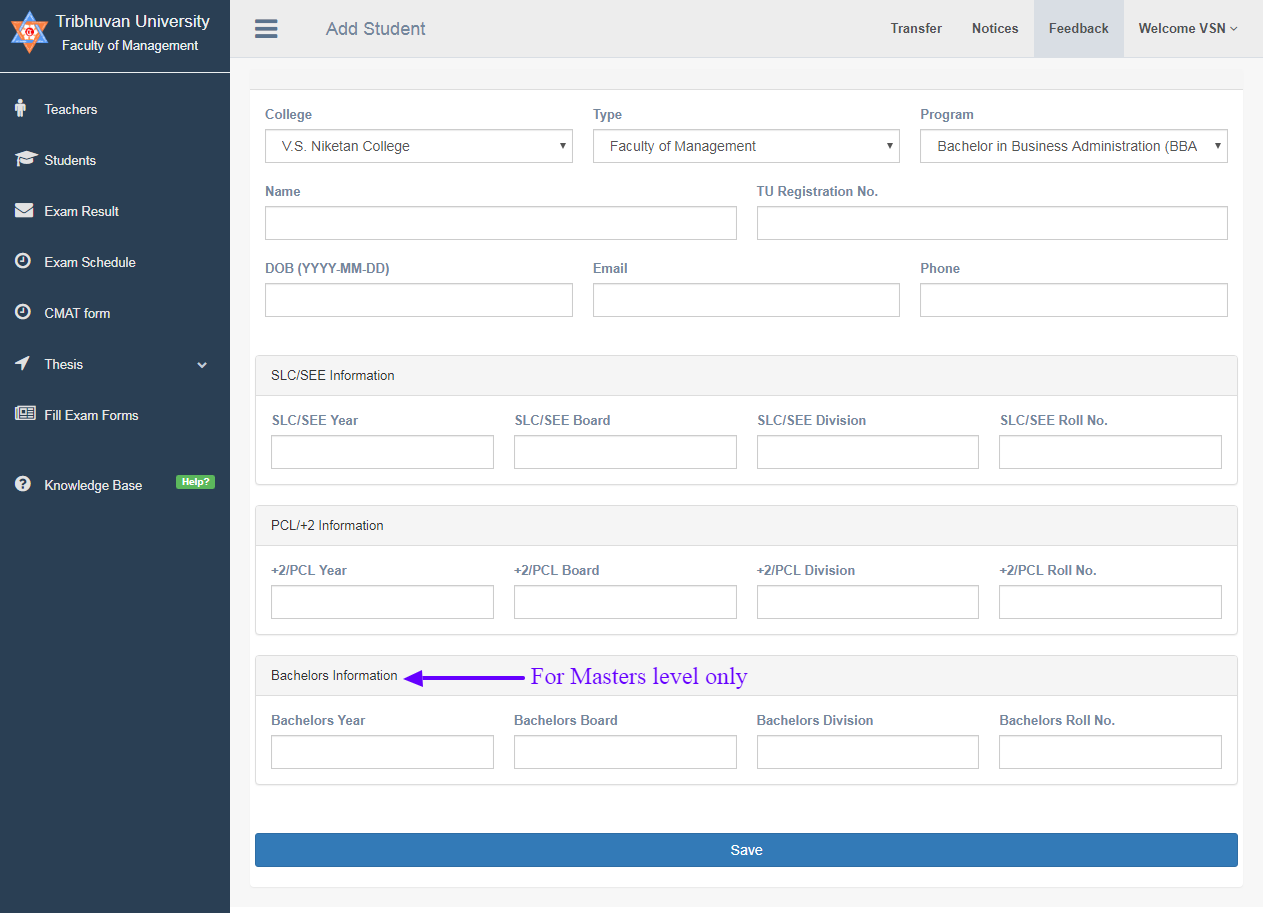
To add a student, you will need to click Add student button then you will be redirected to page below:
#How to add student?
- Select student’s program.
- College name is auto generated.
- Enter student’s full name.
- Enter student’s TU Registration no.
- Enter student’s date of birth in valid format.
- Enter student’s valid email.
- Enter student’s Phone number.
- Enter student's SLC/SEE information.
- Enter student's PCL/ +2 information.
- Enter student's Bachelors Information in case of Masters Students, otherwise you can leave it.
- Click the save button at the bottom.
- If entry is successful, the entered student’s data are listed to student table.
# Bulk Action (Add many students at once)
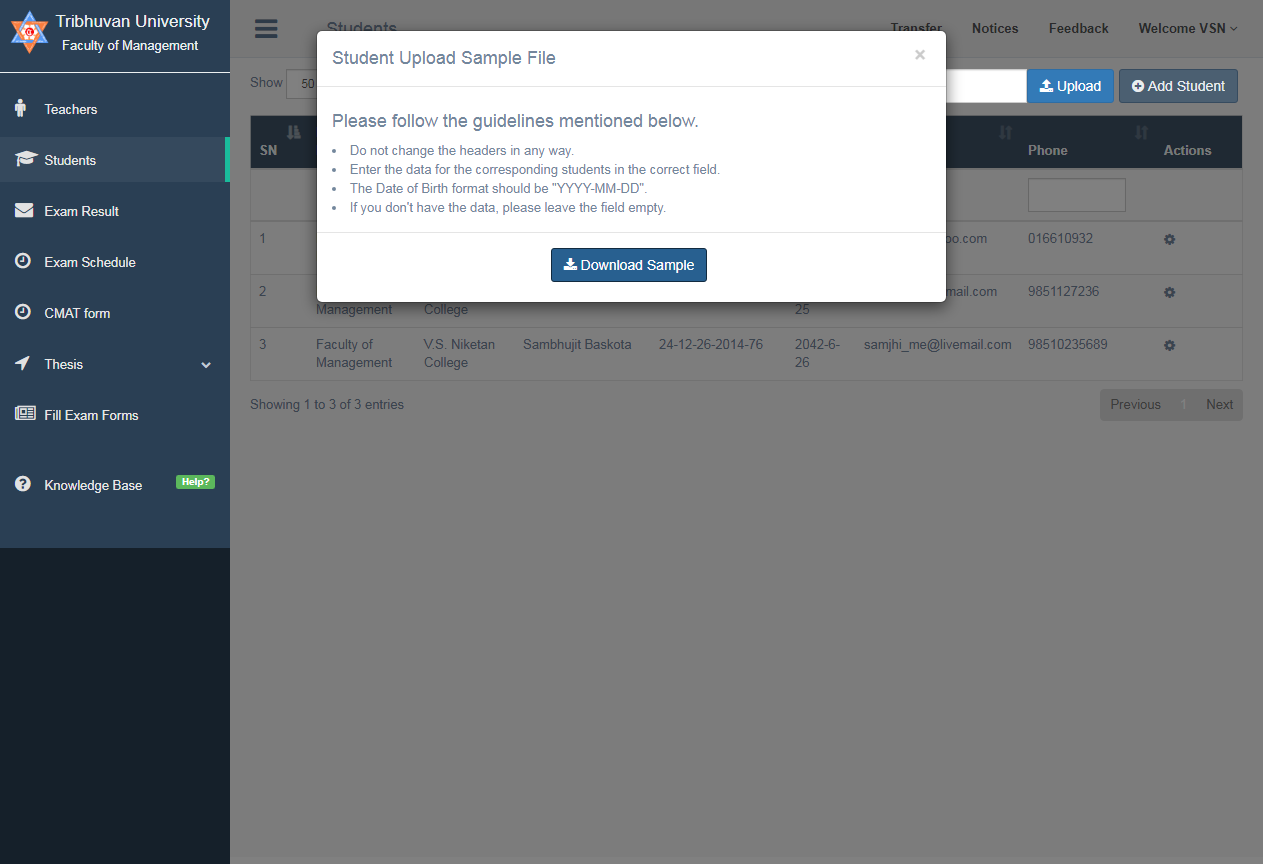
In order to add multiple students to the system at once you can upload the student list in Microsoft Excel file. The valid excel format can be downloaded using
 button. Once the student information has been filled, the file can be seleted using "Choose File" and uploaded using "Upload" button.
Please follow the guidelines before using excel format sample to add students.
Search Student
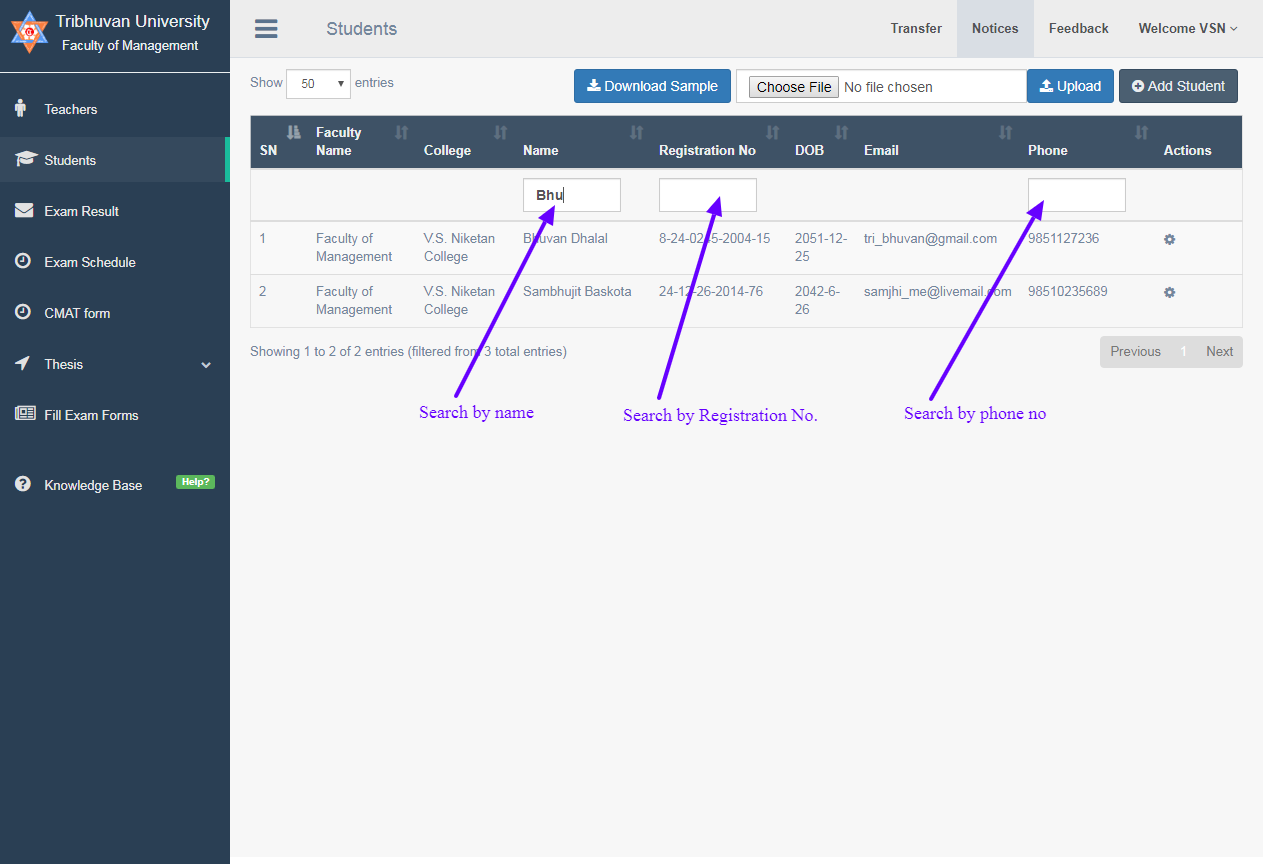
- For finding students from given student’s list type student’s name in the input box or type TU Registration No or Phone number.
- Note: Only one box can be filled out at a time to get result.
- In student list filtering we use student name ,phone and most important TU. registration number.
Edit/Delete Students
- For Editing students click on the settings button and option box will appear.
- Click on delete to delete the Student’s data row from the table.Student cannot be deleted once the student's thesis information has been uploaded.
- Click on edit opens edit form.
- Edit form already contains value, so delete the values from form field which is needed to edited.
